
This guide covers Mistral LeChat setup. For other AI clients, see our client compatibility guide.
Prerequisites
Before you begin, make sure you have:Mistral LeChat
Access to Mistral LeChat at chat.mistral.ai
Civic Account
Create a free account on nexus.civic.com
Step 1: Copy the MCP URL
Visit nexus.civic.com
Open nexus.civic.com in your browser and sign in with your Civic account.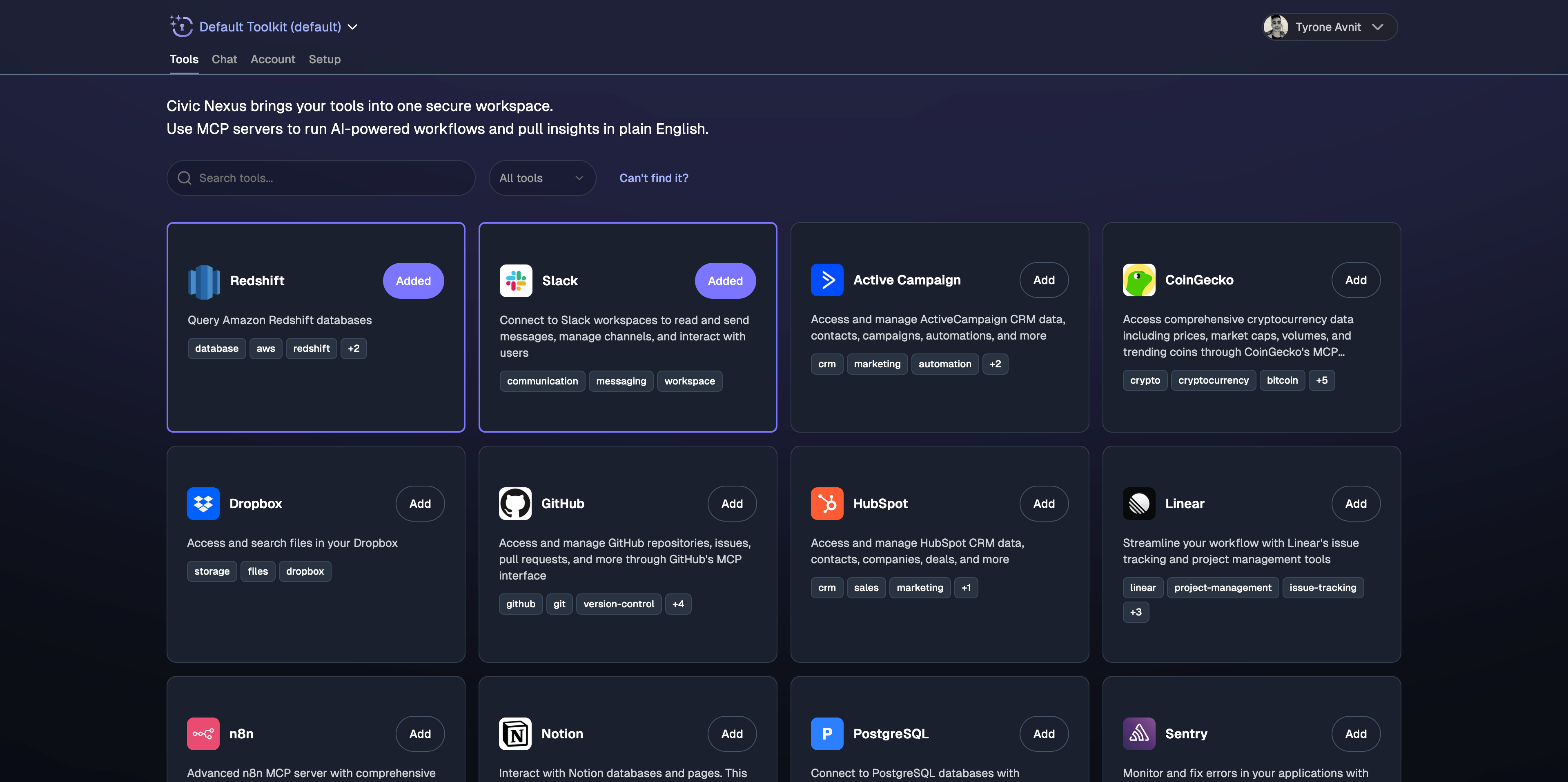
Browse available MCP servers
Explore the directory of available MCP servers. Each server connects to a different service or tool.
Select servers to connect
Click the checkbox next to each MCP server you want to use. You can select multiple servers.
Step 2: Add Connector to LeChat
Open LeChat Intelligence settings
In LeChat: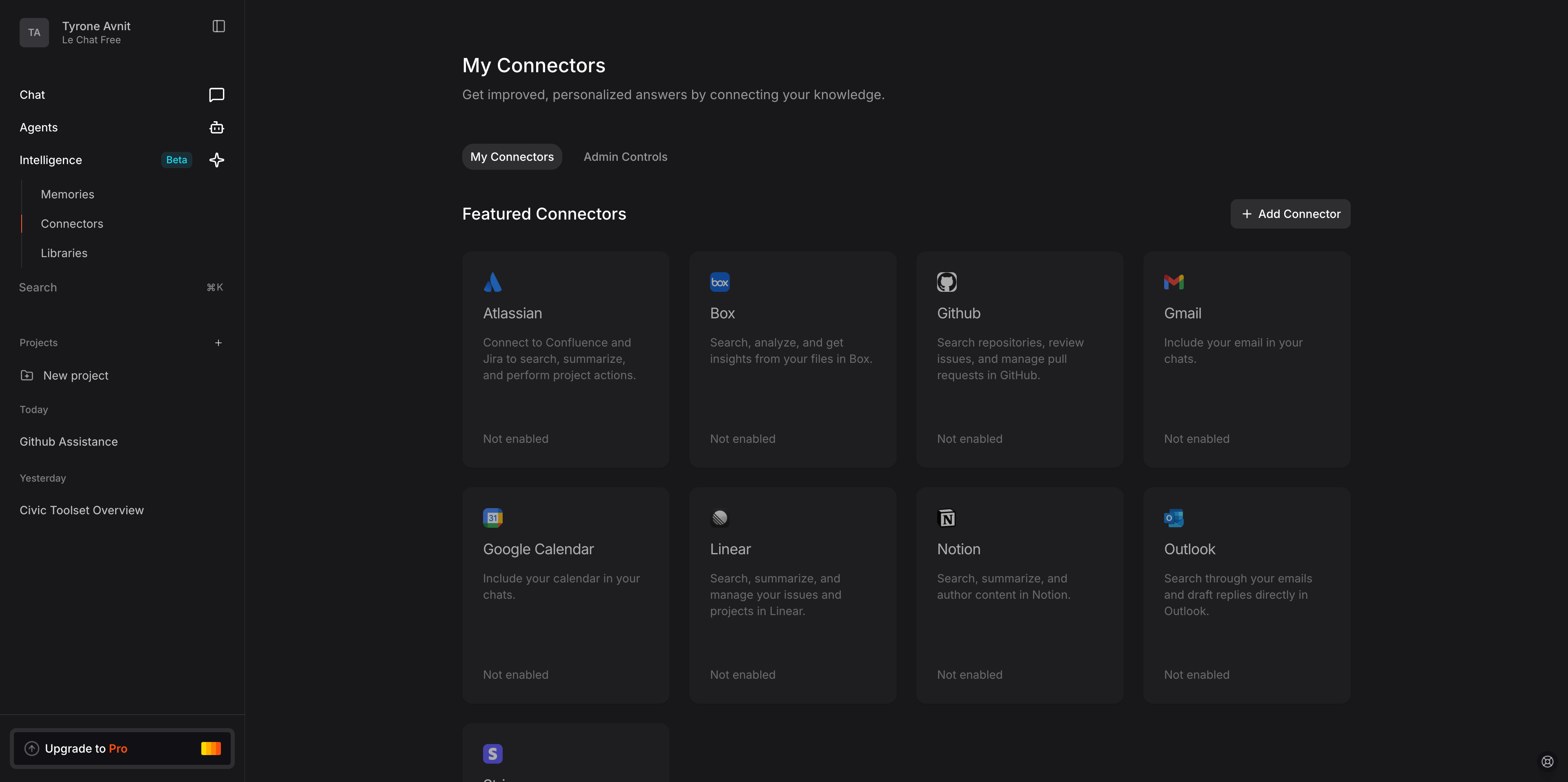
- Look at the left-hand sidebar
- Click on the “Intelligence” tab
- This will open the Intelligence settings panel
Access Connectors section
- In the Intelligence panel, click on “Connectors”
- This will show your existing connectors and options to add new ones
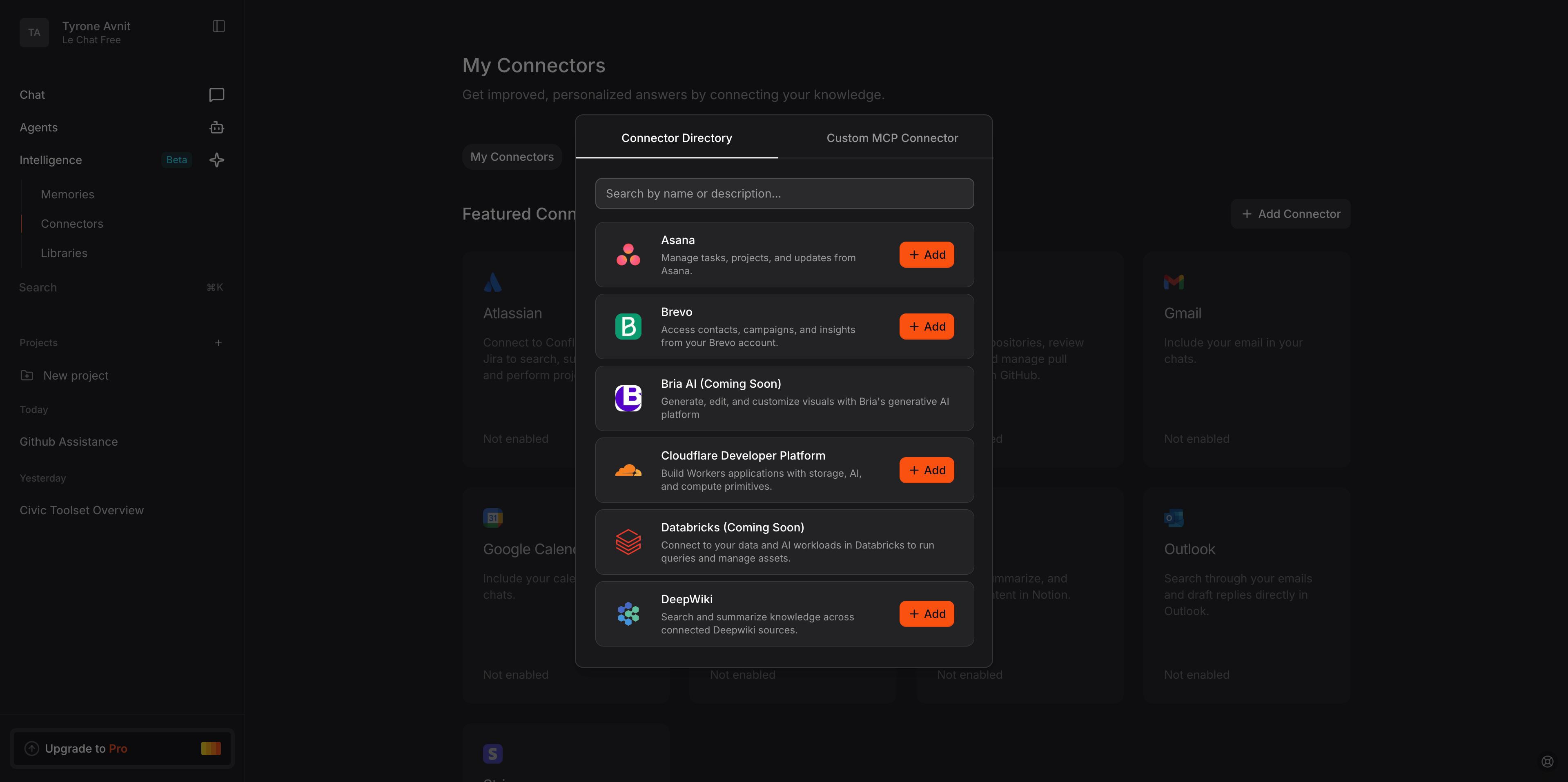
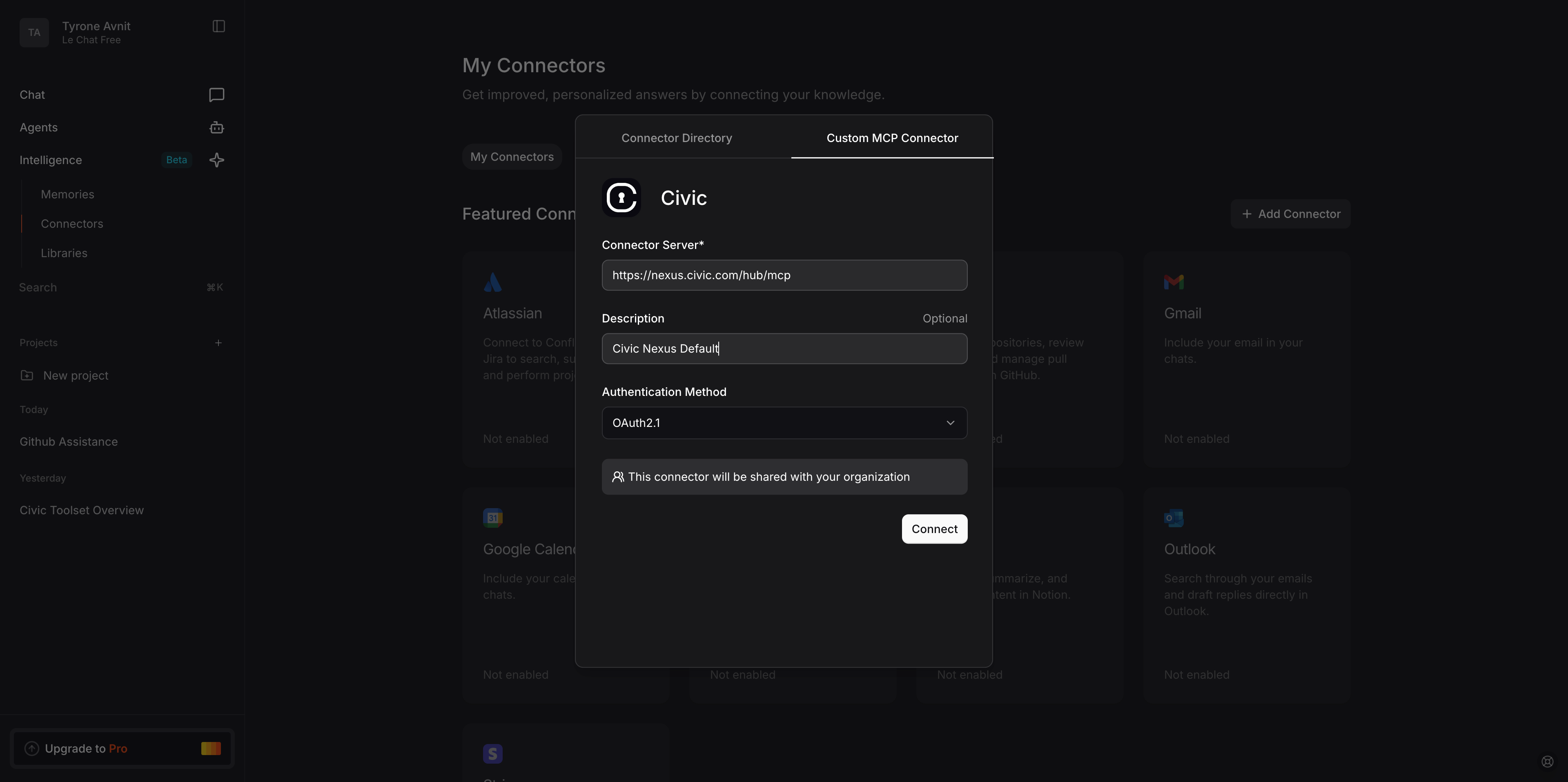
Step 3: Authenticate and Test
Complete authentication
When you first use an MCP server that requires authentication: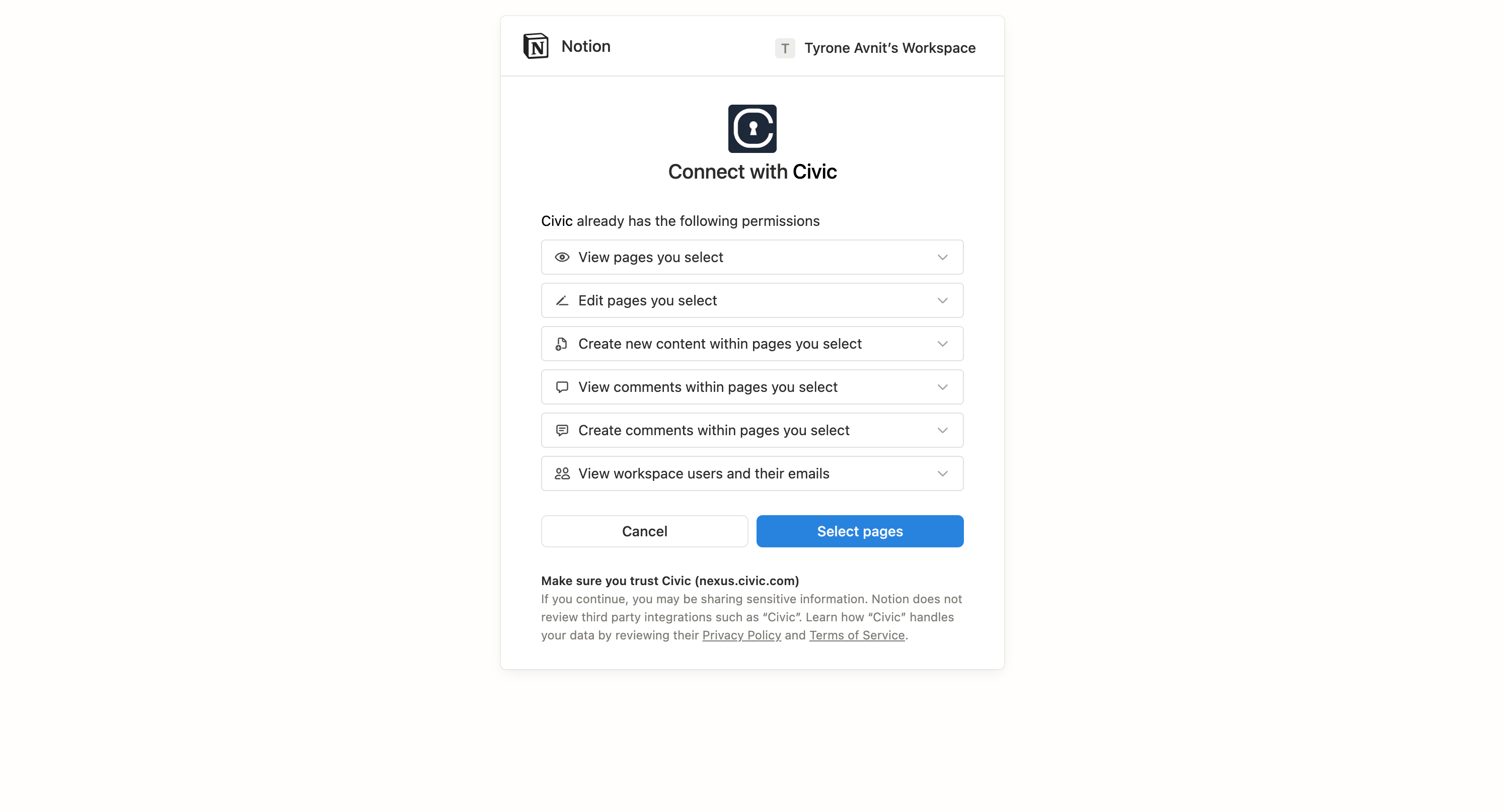
- LeChat will prompt you to connect to the service
- A browser window will open for OAuth authentication
- Sign in to the service and authorize access
- Return to LeChat when complete
Authentication is handled securely by Civic Nexus. Your credentials are never exposed to LeChat or stored locally.
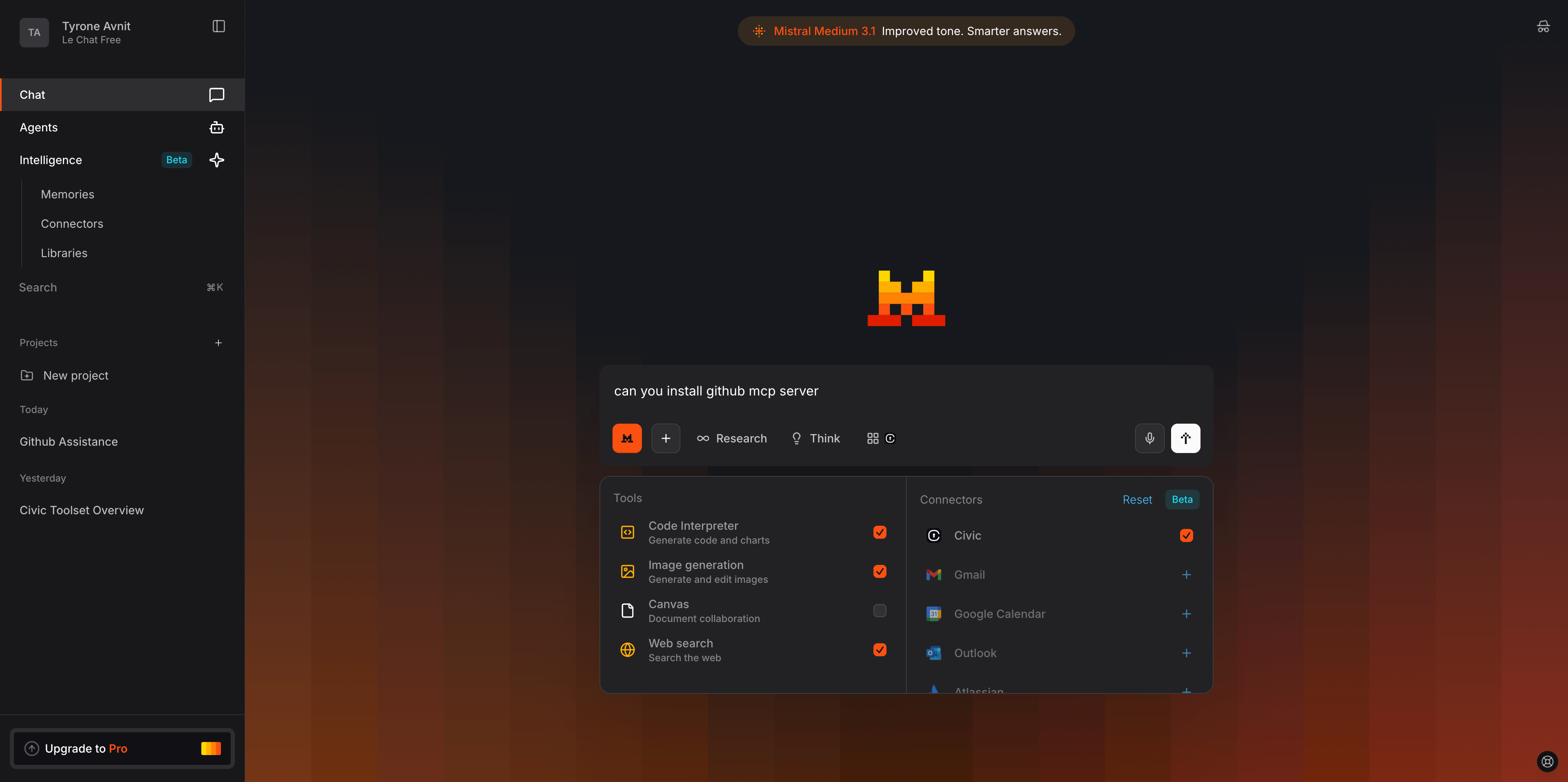
Managing Your MCP Connectors
Adding More Tools
You can add new tools directly in your LeChat conversation:Viewing Connected Tools
To see your currently connected tools:- Go to Intelligence → Connectors in the left sidebar
- View the list of active connectors
- You can see connection status and last used time for each
Removing Tools
You can disconnect from specific tools:Remove connector
- Find “Civic Nexus” or the specific tool in your connectors list
- Click the three dots or settings icon next to the connector
- Select “Remove” or “Disconnect”
- Confirm the removal when prompted
Clean up authorizations (optional)
Visit nexus.civic.com to revoke service authorizations if you no longer want Civic to have access
Reset Connection
If your connector isn’t working properly:Common Questions
Is MCP support available on all LeChat plans?
Is MCP support available on all LeChat plans?
Check your LeChat plan features. MCP connector support may vary by subscription tier. Visit chat.mistral.ai for plan details.
What if authentication fails?
What if authentication fails?
If you encounter authentication issues:
- Make sure you’re logged into the correct account for the service
- Check if your account email matches between nexus.civic.com and the service
- Try removing and re-adding the MCP connector with a fresh URL
- Check our troubleshooting guide for more solutions
Can I use different email addresses?
Can I use different email addresses?
If your nexus.civic.com account uses a different email than your connected services (e.g., work@company.com vs personal@gmail.com), make sure you authenticate with the correct account for each service during the OAuth flow.
My connector shows as disconnected
My connector shows as disconnected
Try these steps:
- Refresh the LeChat page
- Remove the connector completely and re-add with a fresh MCP URL
- Check that your browser allows pop-ups for authentication
- Clear browser cache and cookies for chat.mistral.ai
Two-Minute Verification
Once connected, test these prompts to make sure everything works:- If you selected GitHub
- If you selected Slack
- If you selected Dropbox
Need Help?
Troubleshooting Guide
Solutions for common LeChat connection issues